Error has occurred!
- KB592
- Apr 10, 2026 09:29 AM
How do I Get an API Key to Use for the AI Features of PDF-XChange Editor?
If you want to use the AI features in PDF-XChange Editor then it's necessary to obtain an API key and add it to the software via the preferences options. There are a few options you can use to do that, as detailed below.
Creating an Anthropic API Key
-
Go to console.anthropic.com and log in/sign up using your email address/Google account. Note that this is a separate workspace from the regular Claude.ai chat—even if you already pay for Claude Pro, you still need to create an account here for API access. The API is “pay-as-you-go” and you must prepay for credits before the API key will work.
-
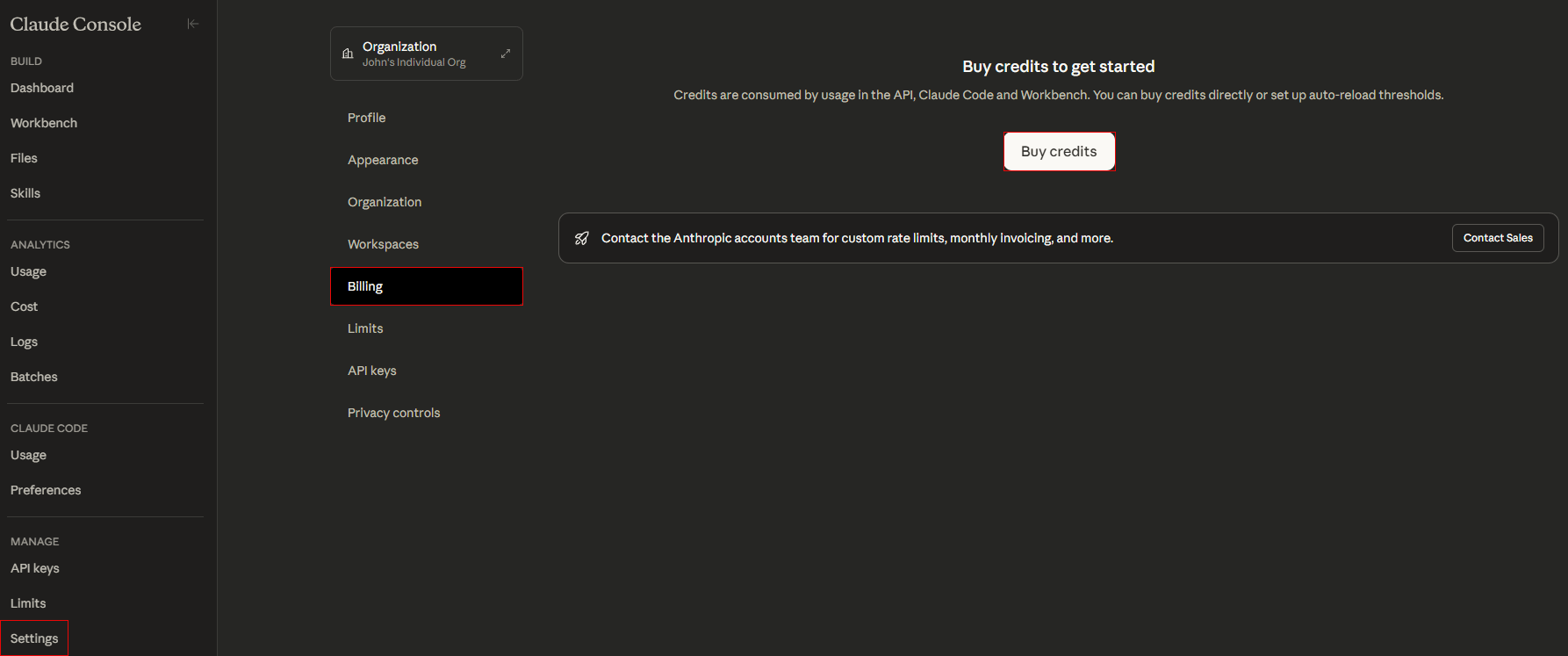
Log in, go to the Settings tab on the left side bar, click Billing and then click Buy Credits:
-
Enter your credit card information. Tip: start with a small amount, as these credits typically last for millions of words unless you're using the most expensive models (like Claude 4.5 Opus) for very large tasks. Enable Auto-reload if you want the system to automatically charge your card when your balance gets low.
-
Click API Keys, then click the Create Key button, and name the key. Your key will appear as a long string that starts with “sk-ant". Copy the key to the clipboard and save it in a secure location. Anthropic will only show you this key once. If you close the window without copying it, then you will have to create a new one.
-
Paste the key into the AI preferences tab of PDF-XChange Editor. Tip: If you subsequently see an error saying ‘insufficient credits’ after making payment, wait a few minutes for the system to process your payment and try again. If it still doesn't work, ensure you haven't set a ‘monthly spend limit’ that is lower than what you're trying to use.
Creating a Google AI API Key
-
Go to aistudio.google.com and sign in using your Google account.
-
Read and accept the terms of service. Note that Google may use your data to improve its models in the free tier. If you want to avoid that then you must move to the paid tier in step 3.
-
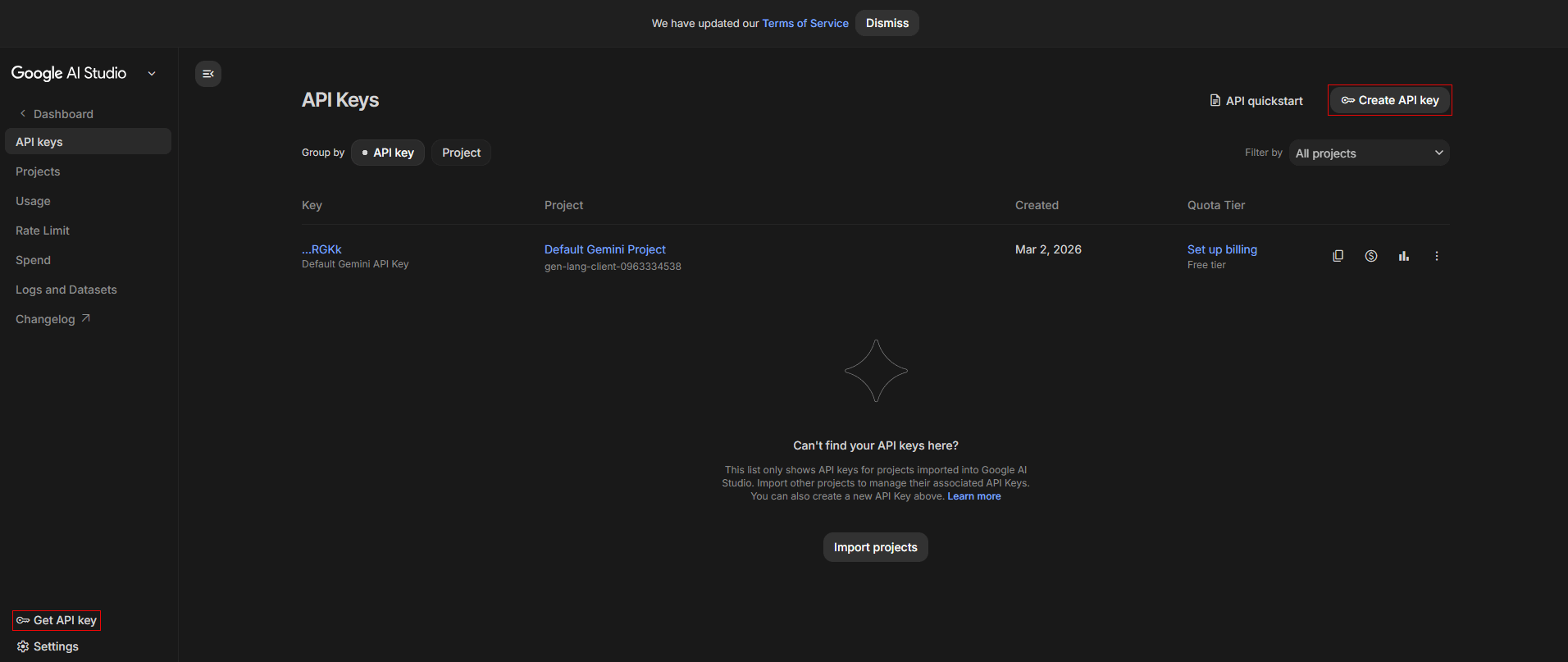
On the left-hand sidebar, click “Get API key”, then click “Create API key”:
-
The "Create a new key" dialog box will open. Name the key and select a project for it. Note that you might have to select "Import project" and create a project in the Cloud Projects UI in order to proceed. Be sure to copy the key and save it in a secure location.
If you find the free limits too restrictive, or you want to ensure your data remains private, follow these additional steps to add a payment method:
- Click "Set up billing" in the API keys table, and follow the prompts to link a Google Cloud Billing account. Note that if you are a new user then you will need to create a "Cloud Billing Account" and enter your address and credit card details. Google often gives new users some free credits (valid for a short time) when they set up a billing account.
- Once the account has been created, return to the API Keys page in AI Studio.
- Check the "Quota tier" column next to your key, and ensure it says "Tier 1" (or higher), which confirms you are on the paid version of the product. Please note that on the "Pay-As-You-Go" model you will be charged based on how many "tokens" (words/images) you send and receive. It's highly recommended to set a "Budget Alert" in the Google Cloud Billing console so that you get an email if your spending a preset threshold is reached.
Creating an Open AI API Key
-
Log in at platform.openai.com Note: if you have an account with ChatGPT then you can use those login details. However, a ChatGPT Plus subscription does not cover API costs, as they are billed separately.
-
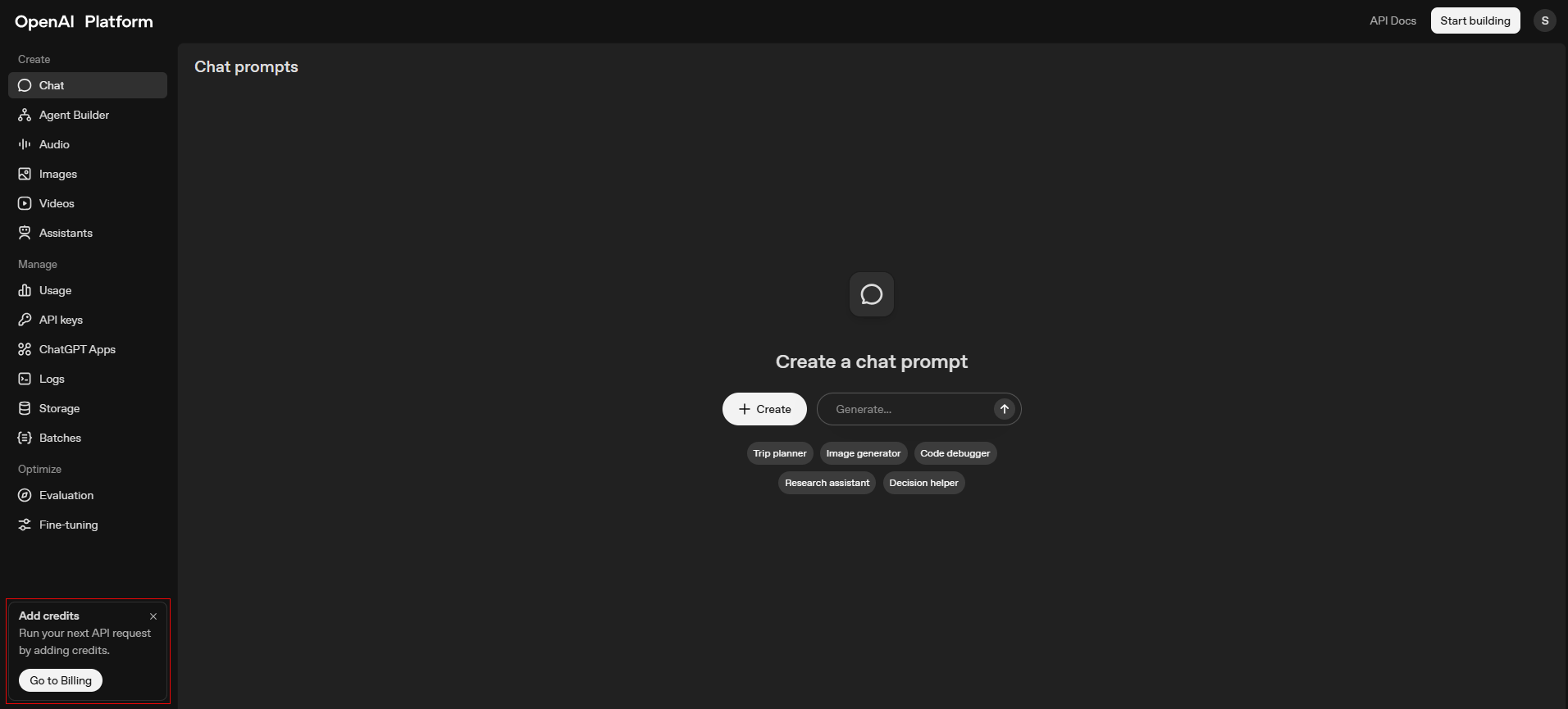
In the left sidebar, click Go to Billing:
-
Click Add Payment Details, then enter your credit card details and choose an amount to start with (note there is a minimum charge). Important: under the billing settings, look for Auto-recharge. If that option is enabled then OpenAI will charge your card automatically when necessary. If you disable it then your apps will simply stop working until you add more money.
-
On the left sidebar, click API Keys.
-
Click Create new secret key, and name the key.
-
Click Create secret key.
-
Copy the key and save it in a secure location, as OpenAI will hide the key permanently when you click Done.
Please note that references to “charges,” “payments,” or similar terms in this article relate solely to transactions between you and your chosen AI service provider—not PDF-XChange Co Ltd.
PDF-XChange Co Ltd does not recommend, appoint, or endorse any AI service provider. The selection and use of such services are entirely at your discretion and are independent of any relationship with PDF-XChange Co Ltd.
PDF-XChange Co Ltd does not process, manage, or receive any payments for AI services. All purchases, subscriptions, and billing arrangements occur directly between you and the provider you choose.
PDF-XChange Co Ltd makes no representations regarding the suitability, accuracy, functionality, or reliability of any AI service or provider. Our software simply provides a conduit through which you may access AI services within our products.
For billing or purchase inquiries, please contact your chosen AI service provider directly. PDF-XChange Co Ltd has no visibility into, or control over, third-party AI services or the charges associated with them. Use of any AI service is entirely at the user’s own risk, and PDF-XChange Co Ltd accepts no liability arising from such use.
More Like This
- KB#456: How Do I Customize toolbars in PDF-XChange Editor?
- KB#282: Why won't the "Email Document" feature work in conjunction with Microsoft Outlook?
- KB#338: What are the MSI installation switch options for the PDF-XChange family of products?
- KB#447: How do I determine what version I should install/how can I retrieve my serial key?
- KB#139: How do I set the default style of annotations in PDF-XChange?